Google's verification review takes up to 5 business days, and on rare occasions longer. You don't pick the method — Google decides it from your business type, public info, region, or business hours — so this guide covers every option, what a verification video has to show, and what to do when it fails.
Contents
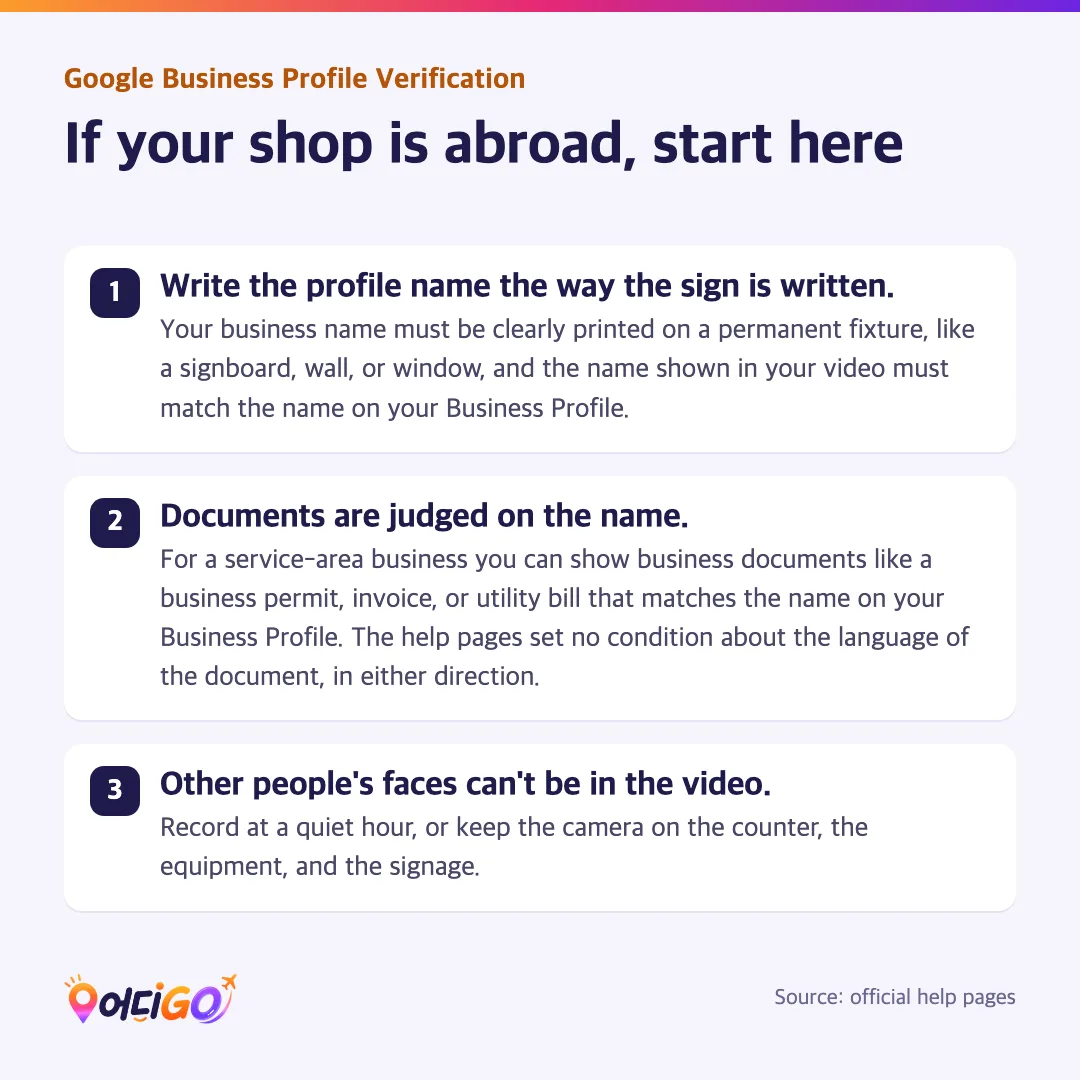
If your shop is abroad, start here
Three rules settle most overseas cases, and all three are about what the camera sees. The detail sits further down under Running a shop abroad, but check these before you touch your profile.
- Write the profile name the way the sign is written. Your business name must be clearly printed on a permanent fixture, like a signboard, wall, or window, and the name shown in your video must match the name on your Business Profile.
- Documents are judged on the name. For a service-area business you can show business documents like a business permit, invoice, or utility bill that matches the name on your Business Profile. The help pages set no condition about the language of the document, in either direction.
- Other people's faces can't be in the video. Record at a quiet hour, or keep the camera on the counter, the equipment, and the signage.
Which Google Business Profile verification method will you get?
You don't choose. Verification methods are automatically determined by Google and can't be changed, and the options available to you depend on your business type, public info, region, or business hours. In some cases you may need to verify your business with more than one method.
Whatever sits under the Get verified button is what you have to work with. If your business is eligible for video verification, Google recommends that you use that option.
| Method | What you do | Timing | Conditions and limits |
|---|---|---|---|
| Video recording | Record live footage of at least 30 seconds on a mobile device and upload it through your Business Profile. | The review can take up to 5 business days. | Pre-recorded videos aren't allowed. Recommended by Google if your business is eligible. |
| Phone or text (SMS) | Get a code by call or text, then enter it on your profile. | You enter the code as soon as the call or text reaches you. | You must be able to answer your business phone number or receive text messages. Interactive Voice Response (IVR) systems won't get the code. |
| Select Email under Get verified and follow the steps in the email. | You act as soon as the email lands. | Make sure you can use the email address in the verification screen. | |
| Live video call | Show your location and ownership to a support representative through your device camera. | Calls are only available within the business hours of your location. | Live video verification may not be available for all businesses. |
| Mail (postcard) | Request a mailed code, then enter it on your profile. | Most codes arrive within 14 days, and codes expire after 30 days. | Verification through postcard isn't available for all businesses. |
If more than one option is showing, Google doesn't rank them for you. The order below is our reading of the conditions in the table, not a rule from the help pages.
- Video first. It's the option Google recommends where you're eligible, and you choose the moment you record — there's no call to catch and nothing to wait for in the post.
- Phone or SMS second, but only if a person answers that line. An IVR menu can't collect a code, so a switchboard number closes this route before you start.
- Postcard last, and last of all from abroad. Mail time lands on top of the review, and one edit to your name, address, or category while the card is travelling sends you back to the beginning.
Every route ends at the same gate: after you complete the verification steps, Google reviews the info you provided. The review window for each method is in the table above. If you try the options available to you and still can't verify your business, contact support.
Every walkthrough below starts at your Business Profile. To open it, sign in to the Google Account associated with the profile, then search your business's name and city — or just "my business" — on Google Search. If your business isn't on Google yet, add it. If the profile exists but nobody has claimed it, claim it first — the Google Maps app can do that too.
How to verify with a video recording
Video verification works for businesses with a physical storefront, service-area businesses, or hybrid businesses that do both. You must capture the footage live, because pre-recorded videos aren't allowed and you can't record it offline and upload it later. Plan the whole walk-through before you press record.
Your video must be an unedited, unique, and complete recording with no breaks, at least 30 seconds long, and recorded and uploaded from a mobile device through your Business Profile. It must not include sensitive info like bank account, tax, or ID numbers, private info about you or others, or other people's faces.
Storefront and hybrid businesses. A storefront business interacts with customers in-person during business hours at a physical location with permanent on-site signage. A hybrid business serves customers at its location and also visits or delivers to them, like a dine-in restaurant that also offers delivery. If your business doesn't have permanent on-site signage, list it as a service-area business instead of storefront. Three things have to appear in the recording:
- Your business location: street signs, building numbers, nearby businesses, or familiar places around your business.
- Proof that your business exists: your storefront, showroom, or business signage, with your business name clearly printed on a permanent fixture. The name shown in the video has to be the name on your profile.
- Proof of management: record things only an employee can access, like opening a cash register, kitchen, storage room, or using a point-of-sale system.
Service-area businesses with no storefront address. A service-area business goes to customers or offers services but doesn't serve them at its business address, like a locksmith or a plumber. If you don't serve customers at your business location, do not add your business address to your Business Profile.
- Where you operate: record street signs, nearby landmarks, or other identifiers at your business address, and avoid filming empty land or locations without clear markers.
- Proof the business exists: the professional tools, equipment, or products you use for work, such as specialized machinery, your workspace, business cards, or branded apparel worn by employees or customers.
- Proof of management: record yourself performing a service or accessing business-only assets, such as unlocking a van that has your business branding. Business documents work too, on the name-match condition set out at the top of this guide.
Google has one tip for the address problem, and it is narrower than it looks. If you run a service-area business from your home, you can record landmarks and signs in your immediate neighborhood to verify the address. Online-only businesses are a different matter. If your business operates online-only, like e-commerce shops with a virtual storefront, and doesn't offer any in-person services, you're not eligible for a Business Profile and can't be verified.
Recording and uploading, step by step. The help page gives one mobile path and doesn't split it by handset, so the taps below are the same on Android and iPhone. Read every step before you start, because the recording has to be one unbroken take.
- On your mobile device, open your Business Profile (see above).
- Tap Get verified. To start verification, you may need to enter your phone number, then tap Next.
- Tap Business video, then Next.
- Read the video requirements. You might be asked to allow access to your location, camera, and microphone.
- Tap Next, then Start recording.
- Record your walk-through, stop, then review the video to make sure it shows all the required info. Tap Try again to re-record.
- Tap Upload video.
You can delete your verification video anytime: tap More, then Business Profile settings, then Advanced settings, and under "Video uploads" tap Delete videos. If you don't, Google will delete it later.
Why can't I verify by phone, and what about email?
Phone or text only works if you can answer your business phone number or receive text messages on it. Interactive Voice Response (IVR) systems won't get the code, so a line that answers with a recorded menu leaves the code nowhere to land. And if Phone or SMS doesn't appear under Get verified, it wasn't offered for your profile — Google set your options, and you can't add one.
By phone or text: open your Business Profile, select Get verified, then Phone or SMS. Answer the call or open the text with the code, then enter the code on your profile.
By email: open your Business Profile, select Get verified, then Email, and follow the steps in the email. The address sits in the verification screen, so check that you can use it before you start.
Postcard verification: the code, the wait, and what breaks it
Verification through postcard isn't available for all businesses. If it is available and you choose it, Google will mail you a verification code, and to confirm that your business is at the listed address you must enter the code on your profile. Most codes arrive within 14 days.
- Open your Business Profile, select Get verified, then Postcard.
- Make sure your business mailing address is correct, then request the code.
- When the postcard arrives, enter your 5-digit verification code in the "Code" field and select Submit.
Two habits will cost you the whole wait:
- Do not edit your business name, address, or category on your Business Profile. If you do, the code that was sent won't work.
- Do not request a new code. Google invalidates the code in the mail and sends a new one, which can make the process longer.
Verification codes expire after 30 days. Keep the code secure: Google will never ask for your verification code, and you should not share it with anyone, even with those who manage your Business Profile.
What happens on a live video call
Live video verification may not be available for all businesses, and live video calls are only available within the business hours of your location. You need a device that supports live video calls, and you need to be at your business so you can show your location and ownership during the call.
Have these ready to show on camera:
- Your current location: outside signs, nearby businesses, or a street sign that confirms your business location.
- Your business or equipment: your products, branded equipment, marketing materials, or tools you use to serve customers.
- Proof you manage the business: access to employee-only areas or items like a cash register, kitchen, storage room, or non-sensitive business documents. You can also use your keys to open your facility.
To start, open your Business Profile and select Get verified, then Live video call, then Next. Choose your language, then select Start call to start a text chat with a support representative. When a representative is ready, they'll help you join a video call.
How long does verification take?
After you complete the verification steps, Google reviews the info you provided, and reviews take up to 5 business days. On rare occasions, reviews may take longer. A video review sits on the same clock.
Two situations skip the queue. In some cases, Google verifies a profile instantly: when you verify your website with Google Search Console, or when you use bulk verification. If you own one shop, Search Console is the route that can apply to you. Bulk verification starts at 10 or more profiles from the same business, and its own help page is listed under Sources.
Postcard adds mail time in front of the review. The code travels first, on the timing in the table above, and the review runs after you complete the verification steps, so plan for the two stretches back to back.
How can I tell if my Business Profile has been verified?
When your business is verified, you'll get a confirmation email. Your profile is the other place to look: when the "Get verified" button appears on your Business Profile again, it means Google couldn't completely verify your business. Match the symptom to the next move.
| What you see | What it means | What to do |
|---|---|---|
| A confirmation email | Your business is verified | You can now add profile owners and managers, or transfer primary ownership |
| The "Get verified" button is back on your profile | Google couldn't completely verify your business | Try to re-verify. If your Business Profile shows multiple verification options, you can try other verification methods |
| A "Review issues" notification after a video | Your video wasn't accepted | Select Review issues and follow the on-screen instructions |
| A request for additional info | Some of your business details were recently updated | Select Get Verified and try to re-verify |
| No Get verified button anywhere on the profile | The profile probably isn't yours to verify yet — it hasn't been added or claimed | Add your business if it isn't on Google, or claim the unverified profile on Search or in the Google Maps app, then select a verification option |
| Your live video call slot passed, or nobody joined | Not covered: the help pages say nothing about retrying a missed live call | A judgment call. Open Get verified again inside your business hours, since that's the only window live calls run in, and try the options shown; if you still can't verify, contact support |
Verification failed or the video wouldn't upload — what now?
These are two separate problems with two separate fixes. In some cases, videos fail to upload on the first try, and the answer is simply to upload it again. If the review comes back not successful, your video didn't meet all the requirements, and Google shares the reasons why your first video wasn't accepted.
- On your mobile device, open your Business Profile and tap Review issues.
- Read the issues. The examples Google gives are: business name not visible on storefront, no nearby area shown, and missing proof of authorization to operate the business.
- Record a new video that includes all the info you showed in your first video plus all the missing info needed to meet the requirements.
- Upload your video.
Still stuck? Check the requirements once more and try again, and if you still encounter issues, try another available verification method. Support can help, but Google asks you to try the available verification methods first, which makes it easier for them to provide assistance. You can also ask a question in the Business Profile community forum.
Why does Google keep making me verify my business?
Accuracy is the reason: changes to your business info may require re-verification. If you're asked to provide additional info, it's likely because some of your business details were recently updated, and Google might request more details or ask you to update your info. Select Get Verified and follow the same steps shown in your profile.
That makes edit timing part of the job. Group your name, address, and category changes before a verification starts rather than during one, since editing those fields while a postcard is in transit stops the mailed code from working.
Chains have a second trigger: Google may de-verify accounts that don't actively manage their profiles, and emails you if your bulk verification status changes.
Running a shop abroad: signs, documents, and phone numbers
The three rules at the top of this guide handle most overseas cases. What follows is the detail, plus the questions the help pages leave open. Anything marked as not covered is a judgment call, not a rule.
- A sign in a local script. The verification pages don't set a language for your sign. The name rules live on Google's separate guidelines for representing your business, so read that page before you change a profile name to match a sign.
- A bilingual sign. Film the part that carries the name on your profile, and let the rest of the sign stay in shot.
- Paperwork. For a service-area business, the stated condition on a permit, invoice, or utility bill is the business name. The language it's written in isn't mentioned in the help pages at all.
- A rented space with no sign of your own: if your business doesn't have permanent on-site signage, list it as a service-area business instead of storefront.
- Working from home. Google's tip covers one case only: a service-area business run from your home, where landmarks and signs in the immediate neighborhood can stand in for the address.
- Time zones. Live calls run inside the business hours of your location, so the appointment lands in your own trading day, whatever time it is where the reviewer sits.
Here is what the official help pages don't cover, so treat each one as a judgment call rather than a rule:
- Which methods appear in which country. The options depend on your business type, public info, region, or business hours, but no country-by-country list is published.
- Whether a number registered in another country can receive the code. The stated conditions are only that you can answer your business phone number or receive text messages, and that IVR systems won't get the code.
- What language your signage or your documents have to be in.
- What to do when a live video call slot passes without a call.
- A standalone status checker. Your status shows on your profile and in the confirmation email.
Frequently asked questions
How much does it cost to verify your business on Google?
Nothing. You can add or claim your business at no charge. Verification is part of claiming the profile, not a paid service.
How do I verify without video?
Use whichever options appear under Get verified on your profile: phone or SMS, email, postcard, or a live video call. Google set your options, and you can't add one. If you try the options available to you and still can't verify, contact support.
Can I get verified instantly?
Sometimes. In some cases, Google verifies a profile instantly, which can happen when you verify your website with Google Search Console or when you use bulk verification. Otherwise the standard review window applies, as set out under How long does verification take.
How do I reach verification support?
Both the postcard and live video call instructions say to contact support if you're still unable to verify your business. For video, Google asks you to try the available verification methods first, since that makes it easier for them to provide assistance. Posting to the help community is the other route offered.
Can I delete my verification video afterwards?
Yes. You can delete your verification video anytime, and if you don't, Google will delete it later. If you cancel the upload, both you and Google lose access to the video.
Sources
- Verify your business on Google — https://support.google.com/business/answer/7107242?hl=en
- Verify your business with a video recording — https://support.google.com/business/answer/14271705?hl=en
- Verify Business Profiles in bulk — https://support.google.com/business/answer/4490296?hl=en
- Add or claim your Business Profile — https://support.google.com/business/answer/2911778?hl=en
Last checked: 2026-09-28
This guide was written with the help of AI and checked line by line against Google's official help pages by the Eodigo editorial desk.
This blog is brought to you by Eodigo. For restaurants, cafés, salons and other local shops, we build multilingual websites, run ads that bring in customers, and connect orders and bookings in one place.
Our site is opening soon.