Your Google review link comes from your own Business Profile: open your profile, select Read Reviews, then Get more reviews, and select Copy. If you want the QR code as well, you'll need a computer, and the fix section below explains why.
Contents
How do I get my Google review link?
The official link sits inside your Business Profile, so you don't need an outside generator. First you open the profile, then you copy the link from the same screen that holds the QR code.
Sign in to the Google Account linked to your profile, then pick whichever way in suits the device in your hand:
- On Google Search, search for my business, or for your business's name and city.
- On Google Maps, search for your business's name and city.
- In the Google Maps app on your phone, tap Business at the bottom right.
Once your profile is open, follow these steps:
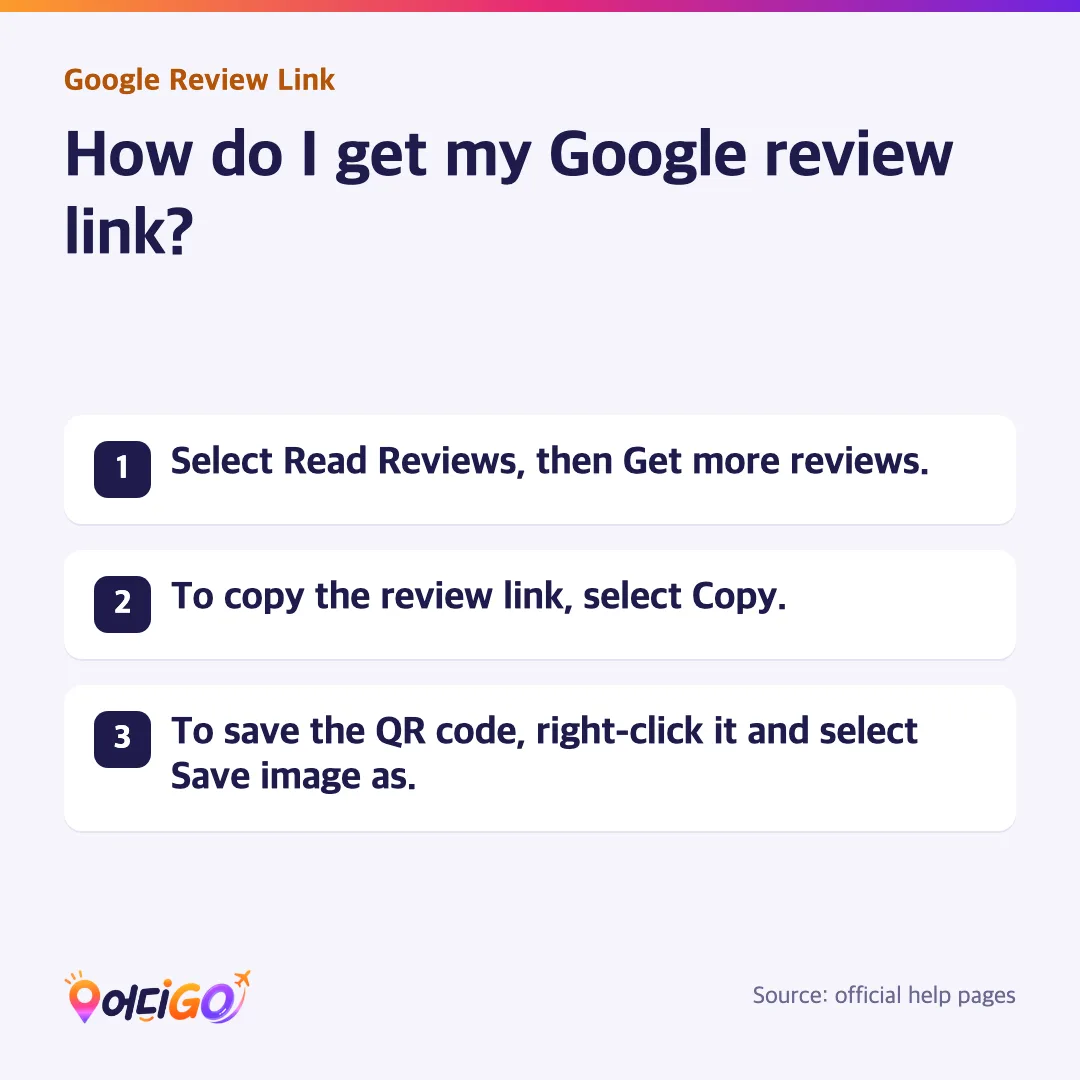
- Select Read Reviews, then Get more reviews.
- To copy the review link, select Copy.
- To save the QR code, right-click it and select Save image as.
Want one more place where customers can find your shop? → List your shop for free
Open the copied link once yourself before you send it to anyone.
Can't find Get more reviews or the QR code?
Most of the time, the cause is the device, the account, or the profile itself. Work down this table and stop at the first row that matches.
| What you see | What the help pages say | What to do |
|---|---|---|
| You're on a phone and there's no QR code | Review QR codes can only be generated on a computer browser, not on mobile devices. | Open your profile on a laptop or desktop, save the image, and send it to your phone |
| Your business doesn't show up for you | To find your profile, you must sign in to the Google Account associated with it. | Sign out and back in with the account you used to set up the profile |
| Your profile isn't verified yet | Only verified businesses can show their business info on Maps and Search. | Finish verification first, since customers need to find you to review you |
| There's no reviews area at all | Reviews are available only in certain countries or regions and for certain business categories. | Check that your category is correct; if it is, reviews may not be offered for it |
| Your profile is suspended | If your business is suspended, you'll get a notification in the Google Account you use to manage your profile. | Fix the issue in that notice before you ask for any reviews |
Google doesn't say whether the review link works before verification, so don't count on it. If none of these rows fits, post your question in the Google Business Profile Help Community.
Should I send the link or the QR code?
Use the QR code when the customer is in front of you, and the link when you're reaching them on a screen. Google suggests receipts, thank-you emails, the end of a chat, and a printed QR code in your store.
| Situation | Use | Why it works |
|---|---|---|
| A customer pays at the counter | QR code on the receipt or a printed sign | They can scan it at home, with no one standing over them |
| An online order or booking is finished | Link in your thank-you email | It arrives while the visit is still fresh |
| You've just answered a question in chat | Link as your last message | It's one tap from where they already are |
| Regulars follow you on WhatsApp or Facebook | Link in a WhatsApp message or a Facebook post | No printing needed, and it reaches people who already know you |
| A customer says they don't have Gmail | Link, plus a quick note | A Google Account can be set up with a non-Gmail email address |
Ask once per customer and leave it there. A link that turns up in every message starts to feel like a sales push.
What can't I do when asking customers for reviews?
Asking for reviews is fine, as long as each review reflects a genuine experience, you offer nothing for it, and you don't try to steer the rating or what people write. Google removes reviews that break the rules below, so go through them before you brief your staff.
- No rewards: no payment, discounts, or free goods or services in exchange for a review.
- No staff quotas, such as asking each employee to collect a certain number of reviews.
- No scripts: don't have staff collect reviews that include specific content, such as a staff member's name.
- No filtering: don't discourage negative reviews or ask only the customers you expect to be happy.
- No pressure at the counter: don't require or push people to leave a review while they're still on your premises.
Google calls incentives fake engagement, and they're strictly prohibited. That also covers rewards for changing a review or removing a negative one. The simple habit is to ask everyone the same way, whether they looked happy or not.
You can find more guides for business owners on this blog.
Frequently asked questions
A customer says the link won't let them post. What's wrong?
Customers must be signed into a Google Account to leave a review. If they don't have one, they can set one up with a non-Gmail email address.
I have more than one location. Which link do I share?
If you have more than one business, open the Google Maps app, tap Business at the bottom right, then tap the Down arrow at the top and select the business you want to view. Then copy the link from that location's profile and label it, so each shop shares the right one.
Can I give a discount to customers who leave a review?
No. A discount, free item, or payment in exchange for a review counts as an incentive, and Google doesn't allow it. You can still thank reviewers in your reply.
Can I set a review target for my staff?
No. Google's policy doesn't let merchants ask staff to collect a certain number of reviews. Ask staff to offer the link to every customer instead, with no count attached.
Should I build my review link from a Place ID?
Some free generator sites build review links from a Place ID instead of the link in your profile. However, Google's Business Profile help pages don't describe that link format. The Copy button in your own profile is the safer source.
References
- Create a Google link or QR code to request reviews
- Find your business on Google
- Tips to get more reviews
- Manage customer reviews
- Maps user generated content policy: prohibited and restricted content
- Google Business Profile Help Community
Last checked: 2026-10-08
Related guides
Next step: Remove Fake Google Reviews: Report, Track and Appeal
This guide was drafted with AI, checked sentence by sentence against the official source pages by a separate AI fact-checker, and approved for publication by the Eodigo Marketing Team. Our editorial standards
Reviews build trust; make sure more customers have a place to see it.
This blog is brought to you by Eodigo. For restaurants, cafés, salons and other local shops, we build multilingual websites, run ads that bring in customers, and connect orders and bookings in one place. Listing your shop on Eodigo is free and helps more customers find you.